How to Install TiviMate 8K on Firestick (2026 Complete Setup Guide)
Install TiviMate 8K on Firestick with Downloader code 5811661, add your playlist with Xtream Codes, load the TV guide and fix common problems. Step by step.
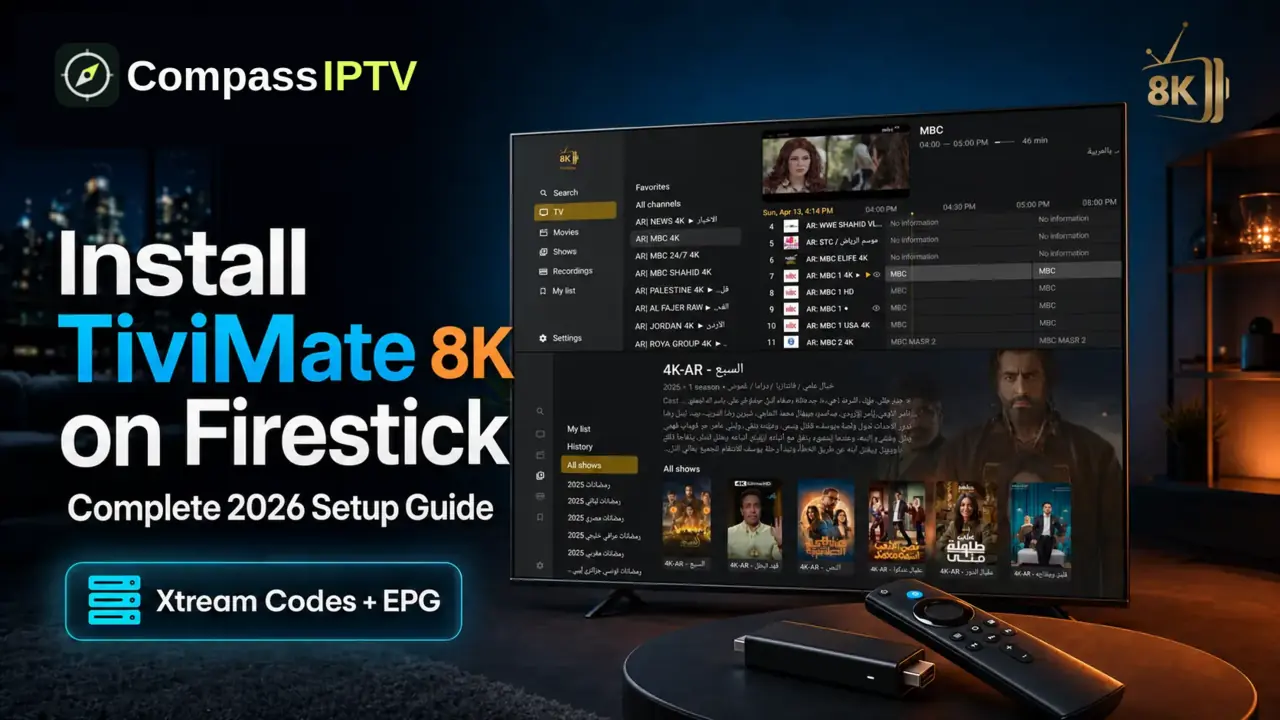
Want to install TiviMate 8K on your Firestick and turn your Amazon Fire TV into a clean, easy-to-use IPTV setup? This 2026 guide takes you through every step: installing the TiviMate 8K IPTV Player, adding your playlist with Xtream Codes, loading the TV guide and fixing the most common setup problems.
TiviMate 8K is the edition of TiviMate provided with our IPTV platform. It is popular on Firestick and Android TV because it is built for big screens and the remote. It supports M3U playlists, Xtream Codes, multiple playlists, favourites, search, EPG, catch-up, recording, parental controls and multiview. Some features need TiviMate 8K Premium, and some also depend on your playlist provider and device.
New to streaming apps? Start with our guide to installing apps on Firestick.
No IPTV subscription yet? Get CompassIPTV
TiviMate 8K needs a service to play. CompassIPTV runs on the same platform as TiviMate 8K, so your login works straight away: live TV, films, series and sport on 1 to 3 screens, with no automatic renewal. Try it free for 24 hours, no payment details needed. Plans from £9.99.
Quick answer: how to install TiviMate 8K on Firestick
- Install Downloader from the Amazon Appstore.
- Turn on Install unknown apps for Downloader.
- Open Downloader and enter the TiviMate 8K code 5811661.
- Download and install the TiviMate 8K APK.
- Open TiviMate 8K and choose Add playlist.
- Select Xtream Codes and enter the server address, username and password from your provider.
- Wait for the playlist and TV guide to load, then organise your favourite channels.
What you need before starting
- An Amazon Fire TV Stick, Fire TV Cube or compatible Android TV device.
- A stable internet connection.
- The free Downloader app.
- An M3U playlist or Xtream Codes login from an authorised provider.
- About 10–15 minutes.
No login details yet? Request a free 24-hour CompassIPTV trial to test your device before choosing a plan.
TiviMate 8K and your IPTV provider are not the same thing
Player vs provider
TiviMate 8K
- What it does
- The IPTV player that organises and plays your playlist on Fire TV and Android TV.
Playlist provider
- What it does
- Gives you the server address, username, password or M3U link you enter in the player.
| Service | What it does |
|---|---|
| TiviMate 8K | The IPTV player that organises and plays your playlist on Fire TV and Android TV. |
| Playlist provider | Gives you the server address, username, password or M3U link you enter in the player. |
Paying for TiviMate 8K Premium unlocks extra app features. It does not include a playlist or any channels.
Prefer a different look? Compare it with the standard TiviMate app, 8K Player VIP or the beginner-friendly IBO Player Pro.
Step 1: Install Downloader on Firestick
Downloader is a free browser and download app, used to install apps that aren't in your country's Amazon Appstore.
- From the Fire TV home screen, select Find or the Search icon.
- Search for Downloader.
- Select the orange Downloader app by AFTVnews.com.
- Choose Get or Download.
- Open Downloader when the installation finishes.
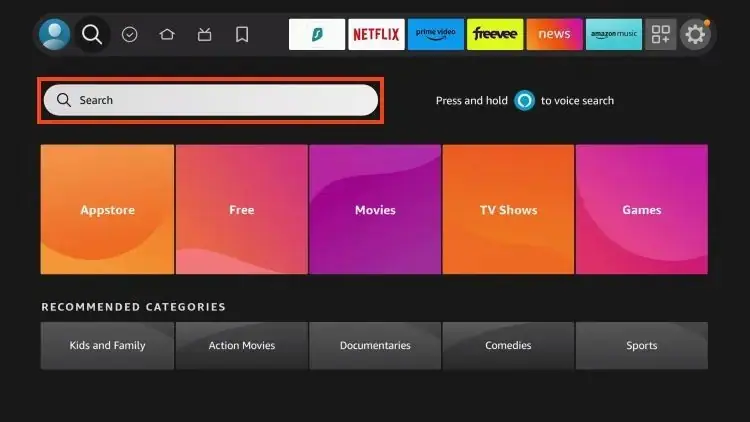
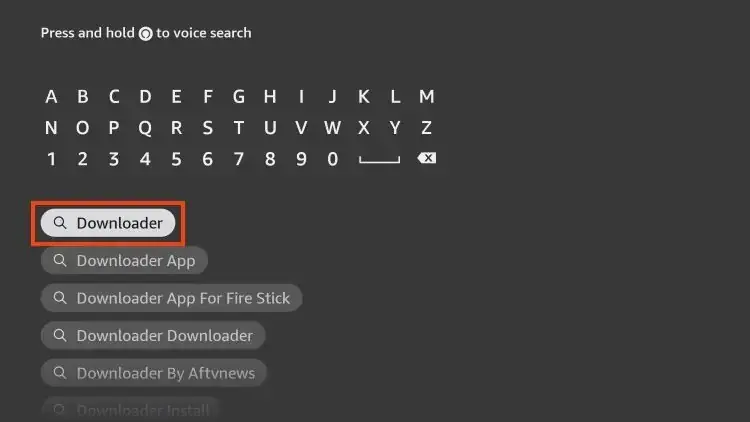
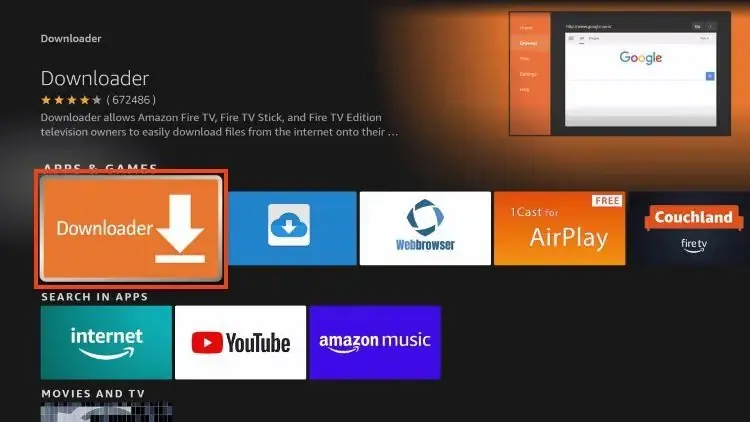
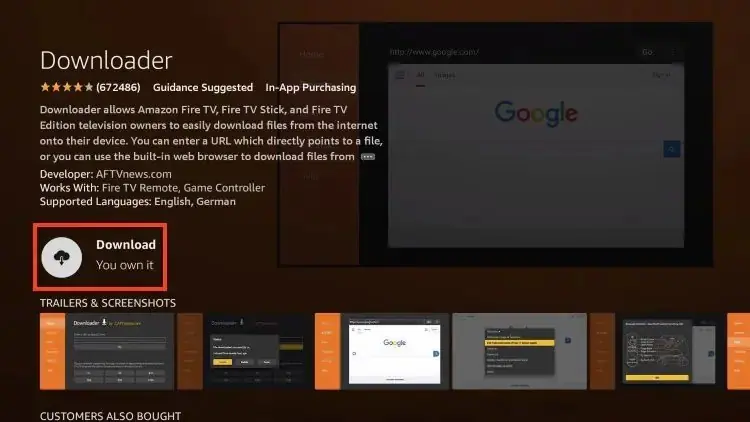
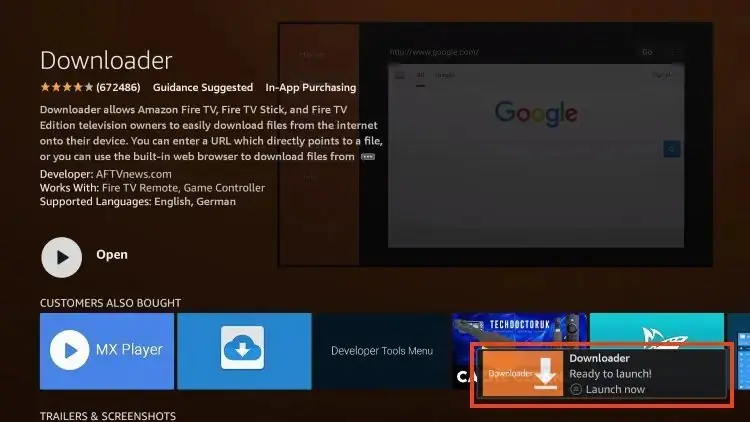
If Downloader asks for access to files, select Allow. Close its welcome message to reach the URL box.
Step 2: Turn on Install unknown apps
Fire TV blocks apps from outside the Amazon Appstore by default. Give Downloader permission to install the TiviMate 8K APK:
- Open Settings from the Fire TV home screen.
- Select My Fire TV.
- Open Developer Options.
- Select Install unknown apps.
- Find Downloader and switch it On.
Developer Options not showing?
- Go to Settings → My Fire TV → About.
- Highlight the name of your Fire TV device.
- Press the centre (Select) button on the remote seven times.
- Wait for the "You are now a developer" message.
- Press Back and open Developer Options.
- Choose Install unknown apps and switch Downloader On.
Still missing? See our Developer Options fix.
Step 3: Download and install the TiviMate 8K APK
- Open Downloader.
- Select the URL box on the Home tab.
- Enter the TiviMate 8K code 5811661 and select Go.
- Wait a few seconds on the redirect page. If the download doesn't start on its own, select the download link.
- Wait for the TiviMate 8K APK to finish downloading.
- When the Fire TV installer appears, select Install.
- Choose Done when it has installed.
- Back in Downloader, delete the APK file to free up storage.
Code not working? See our Downloader fixes.
Step 4: Add your playlist with Xtream Codes
Start your free CompassIPTV trial
24 hours free on your own Firestick, with setup help on WhatsApp. Works with TiviMate 8K straight away.
Keep the activation email or message from your provider open. You need three details: a server address, username and password. CompassIPTV customers find them in the "Your subscription is ready" email and in their account.
- Open TiviMate 8K.
- Select Add playlist.
- Choose Xtream Codes.
- Enter the server address, including http:// or https:// if it was given.
- Enter your username and password exactly as provided.
- Turn on Include VOD if you want films and series to appear.
- Select Next and wait while TiviMate 8K checks the playlist.
- Name the playlist, for example CompassIPTV, and select Done.
The first import can take a few minutes when the playlist and TV guide are large. Keep the app open until it finishes.
Adding an M3U playlist instead
If your provider sent one complete M3U link, select Add playlist → M3U playlist, enter the full link, name the playlist and continue. Xtream Codes is usually easier, because the server, username and password go in separate boxes.
Step 5: Update the EPG and organise your channels
- Open Settings → EPG.
- Select Update EPG.
- Go back to Live TV and let the guide fill in.
- Long-press the centre button on a channel to add it to Favourites.
- Hide groups you don't need, or reorder categories, from the playlist settings.
A short favourites list makes TiviMate 8K much faster to use, especially when a playlist has many regional categories.
Recommended TiviMate 8K settings for Firestick
- Automatic playlist updates: turn on scheduled updates so provider changes appear by themselves.
- EPG updates: refresh the TV guide when the app starts if schedules often look empty.
- Favourites: bookmark the channels you watch most instead of searching each time.
- Parental controls: protect restricted groups with a PIN if the Firestick is shared.
- Recording location: choose storage with enough free space before scheduling recordings.
- External player: only try one if a particular stream has a playback problem.
Recording, catch-up and the TV guide depend on the playlist, the stream and your free storage. Multiview also needs a powerful enough Firestick and enough simultaneous connections on your plan.
Using TiviMate 8K with CompassIPTV
Need a compatible subscription? CompassIPTV logins work in TiviMate 8K through Xtream Codes, and our team helps with setup on WhatsApp and by email.
- Xtream Codes and M3U login options
- Live TV, films and series organised inside the player
- TV guide (EPG) where programme information is available
- Plans for one, two or three screens at the same time
- Free 24-hour trial to test your device and connection
- Setup help on WhatsApp and by email
Plans start from £9.99. Content, quality and availability can vary by region, plan, device and source. If several devices will watch at the same time, choose a multi-connection plan: adding one login to several devices doesn't allow them all to watch at once.
Troubleshooting TiviMate 8K on Firestick
"Invalid details" or "Error adding playlist"
- Re-enter the server URL, username and password exactly as given.
- Remove any spaces before or after each value.
- Check the server address has the right http:// or https:// and port number.
- Remember usernames and passwords can be case-sensitive.
- Check your trial or subscription is still active.
If the same details also fail in another player, ask your provider to check the account.
Channels load but don't play
- Restart TiviMate 8K and the Firestick.
- Make sure no other device is using a one-connection plan at the same time.
- Try several channels to see whether one channel or the whole playlist is affected.
- Restart your router and test your internet.
- Ask your provider to check the account and server.
Buffering or freezing
- Move the Firestick closer to the router, or use 5 GHz Wi-Fi.
- Use an Ethernet adapter where you can.
- Pause downloads, cloud backups and other heavy internet use.
- Restart the router and the Firestick.
- Go to Settings → Applications → Manage Installed Applications → TiviMate 8K → Clear cache.
- Try a lower-quality stream to see if your internet speed is the cause.
Don't choose Clear data unless you're ready to add your playlist and settings again. More fixes in our Firestick buffering guide.
The TV guide is empty or wrong
Open Settings → EPG → Update EPG and check the right EPG source is linked to the playlist. If only a few channels are missing information, guide data may simply not exist for them.
TiviMate 8K is missing from the home screen
Open Your Apps & Channels, highlight TiviMate 8K, press the Menu button on the remote and choose Move to front.
Recording doesn't work
Check free storage, app permissions and the recording folder. Some Firesticks have little internal space, so external or network storage can work better. The stream must also stay available for the whole recording.
How to jailbreak a Firestick (2026 safe guide)
New to installing apps on Firestick? The full guide, with checked codes and apps to avoid.
Frequently Asked Questions
Is TiviMate 8K free?
TiviMate 8K has free basic features, and TiviMate 8K Premium unlocks extra player features. Neither includes channels, films or an IPTV subscription.
What is TiviMate 8K?
TiviMate 8K is the edition of the TiviMate IPTV player provided with our IPTV platform, built for an easy Firestick and Android TV setup. It plays your live TV and on-demand playlist but includes no content itself.
What is the TiviMate 8K Downloader code?
The code is 5811661. Type it into the URL box on Downloader's Home tab and select Go.
Does TiviMate 8K work on Firestick?
Yes, on Fire OS models such as the Fire TV Stick 4K Max, 4K Plus, Lite and Cube. The Vega OS models (Fire TV Stick 4K Select, and the 2026 Fire TV Stick HD and Fire TV Stick 4K) cannot install apps from outside the Appstore.
Where do I get the server URL, username and password?
Your provider sends them after activating a trial or subscription. CompassIPTV customers find them in the "Your subscription is ready" email and in their account. Never share them publicly.
Can I use one subscription on several devices?
You can add the login to several devices, but watching at the same time needs the right number of connections. Choose a two- or three-screen plan for that.
Does TiviMate 8K include a VPN?
No. TiviMate 8K is only an IPTV player and has no built-in VPN.
Can I install TiviMate 8K on iPhone, iPad or Apple TV?
No. TiviMate 8K is made for Firestick and Android TV. On Apple devices, use an iOS or tvOS IPTV player instead.
Is IPTV legal?
IPTV is a delivery technology and is legal in itself. Whether a stream is legal depends on the content rights, the provider and where you live. Only use services authorised to distribute what you watch.
Final thoughts: installing TiviMate 8K on Firestick is straightforward with the right code and valid login details. Downloader handles the installation, and the Xtream Codes option makes adding your service quick. For the best experience, keep a short favourites list, keep the playlist and EPG updated, use a stable connection and match your plan's connections to the number of screens watching at once.
Ready to try TiviMate 8K? Test CompassIPTV free
Get a free 24-hour trial, add it to TiviMate 8K with Xtream Codes and check live TV, films and series on your own Firestick. Plans from £9.99.
See our editorial policy for how these guides are prepared and corrected.
TiviMate Hub
TiviMate setup, compatibility and player guide
Continue with the main setup and compatibility guide for this topic.
Ready to test your IPTV setup?
Try CompassIPTV for 24 hours and check playback, EPG behaviour and device compatibility on your preferred player before choosing a longer plan.
Related Guides & Articles
How to Install 8K Player VIP on Firestick & Android TV (2026)
Install 8K Player VIP on a Firestick, Fire TV or Android TV with Downloader code 439873, then log in with your CompassIPTV username and password. Step by step, with screenshots.
Firestick Developer Options Not Showing? How to Fix It (2026)
Developer Options is hidden on newer Firesticks. Here is how to unhide it in seconds, where "Install unknown apps" went, and what to do if your model cannot install apps at all.
Downloader Not Working on Firestick? 7 Fixes That Work (2026)
Code not working, download stuck, "App not installed" or "There was a problem parsing the package"? Here are the causes and the fix for each one.
Best IPTV Apps for Firestick in 2026 (Compared)
TiviMate, IBO Player Pro, IPTV Smarters Pro and more, compared side by side: price, TV guide, ease of use with the remote, and how to install each one.